
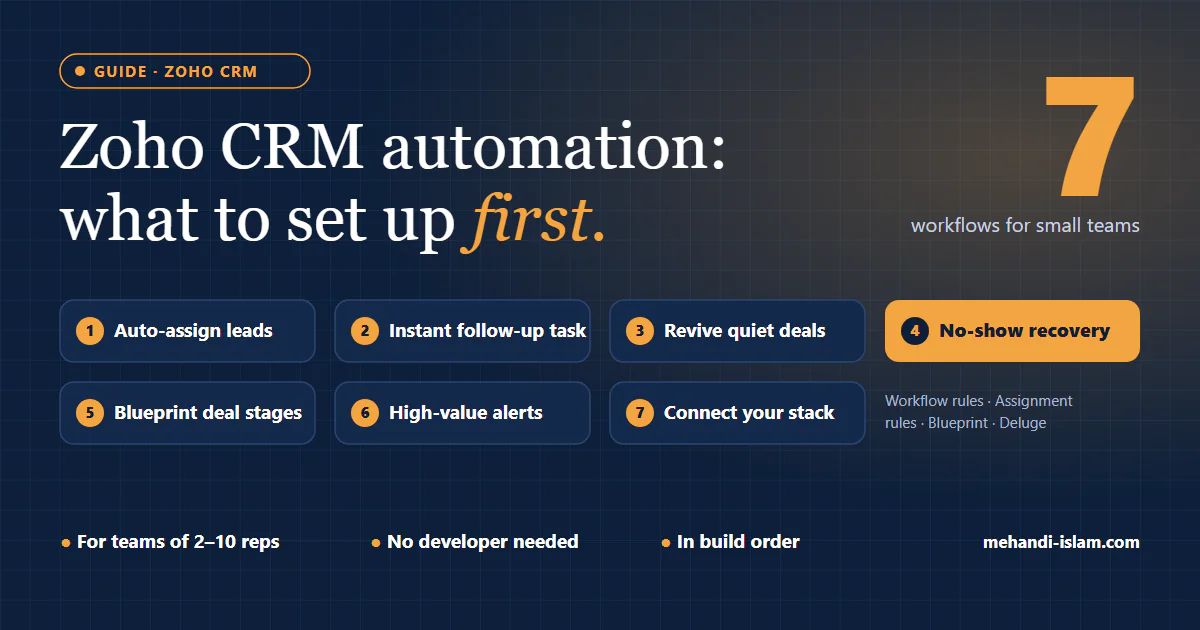
Zoho CRM can automate almost anything. That’s the problem for a small sales team: there are so many options (workflow rules, assignment rules, Blueprints, scoring, cadences, custom functions) that most teams either automate nothing or build twenty overlapping rules nobody understands six months later.
I first worked in Zoho CRM and Zoho One in 2019, for MOBIX France, and I’ve set up CRMs on HubSpot, Close, Pipedrive and GoHighLevel since. The pattern holds across all of them: a handful of automations does most of the work. This guide covers the seven Zoho CRM automations I’d set up first for a team of two to ten salespeople, in the order I’d build them.
Before you automate: three things to get right
Automation multiplies whatever is already in your CRM. If the data is messy, you’ll just get messy results faster. Check these first:
- Lead and deal stages mean the same thing to everyone. If one rep marks a deal “Qualified” after a single email and another waits for a call, every rule built on that stage will misfire.
- Required fields are actually required. At minimum: lead source, owner and next step. Rules that branch on lead source are useless if half your leads have it blank.
- You know where leads come from. Webforms, ads, inbound email, chat, manual entry. Each source is a place a lead can slip through.
1. Assign every new lead to an owner automatically
Tool in Zoho: assignment rules (for leads coming from webforms, imports and the API).
An unassigned lead is a lead nobody follows up. Set an assignment rule that gives every new lead an owner the moment it’s created: round robin across reps, or by territory, product or lead source if your team is split that way.
Two details that matter:
- Add a fallback owner for leads that match no criteria, so nothing ends up assigned to nobody.
- If a rep goes on leave, update the rule the same day. Leads assigned to someone who isn’t working are just as lost as unassigned ones.
2. Create a follow-up task the moment a lead arrives
Tool in Zoho: a workflow rule on lead creation, with a task action.
Assignment alone doesn’t guarantee a reply. Add a workflow rule that creates a task for the owner (“Call or email new lead”) with a short due time, plus an email notification to the rep. Inbound leads cool off quickly, and a task with a deadline shows up in the rep’s day in a way that a new record in a list doesn’t.
If speed to lead matters in your business, add a second, time-based step: if the task is still open after the due time, notify the sales manager.
3. Keep deals from going quiet
Tool in Zoho: a date/time-based workflow rule on deals.
Most pipelines have deals that haven’t been touched in weeks but still sit in an active stage, inflating the forecast. Create a rule that fires when a deal has had no activity for a set number of days (choose a number that fits your sales cycle) and creates a task for the owner: follow up, move the deal back a stage, or close it as lost.
This single rule usually does more for pipeline accuracy than any dashboard.
4. Handle no-shows and cancellations
Tool in Zoho: workflow rules triggered by meeting or field updates, plus an email action. Or an automation platform like Zapier or n8n, if your booking tool lives outside Zoho.
A booked call that doesn’t happen is one of the most expensive leaks in a small team, because you already did the hard part. When a meeting is marked as a no-show or canceled:
- Update the lead or deal status, so the CRM reflects reality.
- Send the lead a short email with a link to rebook.
- Create a task for the rep to try once more personally if the lead is high value.
I wrote up a full version of this system, built on Calendly, Zapier and GoHighLevel, in the no-show follow-up automation case study. The same pattern works in Zoho.
5. Enforce your deal stages with a Blueprint
Tool in Zoho: Blueprint.
A Blueprint turns your sales process into required steps: a deal can’t move to “Proposal sent” until the proposal amount and close date are filled in, or to “Won” until the contract field is set. It’s stricter than a workflow rule, which is the point. Use it on your deal pipeline once the stages are agreed, not before. A Blueprint built on a process the team doesn’t follow just creates frustration.
Keep the first version small: three or four transitions with one or two required fields each. You can add more once the team is used to it.
6. Alert the team about high-value activity
Tool in Zoho: workflow rules with email notifications, or a webhook to Slack or Microsoft Teams.
Not everything needs an alert. Pick two or three moments that deserve a human’s attention right away, for example:
- A deal above a certain value moves to a late stage.
- A lead from a target account fills in a form.
- A won deal needs onboarding to start.
Send those to a shared channel. If every update triggers a notification, the team learns to ignore all of them.
7. Connect Zoho to the rest of your stack
Tool in Zoho: webhooks and custom functions (Deluge), Zoho Flow, or an external platform like Zapier, n8n or Make.
Small teams rarely run on Zoho alone. Booking tools, ad platforms, invoicing and chat all hold information the CRM should have. Native integrations cover the common cases; for the rest, a webhook or an automation platform moves the data.
My rule of thumb: keep the logic in one place. If a lead’s status can be changed by a Zoho workflow, a Zap and a Deluge function, nobody will know which one did it when something goes wrong.
Common mistakes with Zoho CRM automation
- Building rules before agreeing on the process. Automation encodes a process. If the team doesn’t follow one, write it down first.
- Overlapping workflow rules. Two rules updating the same field on the same trigger will produce results nobody can explain. Review existing rules before adding new ones.
- No naming convention. Name every rule by module, trigger and action (“Leads | Created | Assign + task”), so the list stays readable.
- Forgetting about edition limits. The number of rules and some features depend on your Zoho CRM edition, and Zoho notes that workflow rules are disabled if a subscription lapses and must be re-enabled manually after renewal. Check your plan before designing around a feature.
- Never reviewing. Look at your automations every quarter. Rules built for last year’s process quietly break this year’s.
FAQ
What can you automate in Zoho CRM?
Lead assignment, follow-up tasks, email notifications, field updates, deal stage rules, approvals and connections to other tools. Most of it uses workflow rules, assignment rules and Blueprints, with custom functions (Deluge) or webhooks for anything more specific.
What’s the difference between a workflow rule and a Blueprint in Zoho CRM?
A workflow rule reacts to an event (a record is created, a field changes, a date is reached) and runs actions. A Blueprint controls how a record moves through a process and what has to be filled in at each step. Use workflow rules for reactions and Blueprints for enforcing a process.
Do you need a developer for Zoho CRM automation?
Not for most of it. Assignment rules, workflow rules and Blueprints are configured without code. Custom functions in Deluge help with complex logic, and automation platforms like Zapier or n8n handle connections to other tools.
Should a small team hire a Zoho CRM consultant?
If your team spends more time maintaining the CRM than selling, or nobody can explain why a rule fired, an outside review usually pays off. Start with an audit of what’s leaking before adding more automation.
Find out where your pipeline leaks
Whether you run Zoho, HubSpot or another CRM, I’ll look at how leads move from first contact to closed deal and show you where they fall out. The 30-minute Revenue Leak Audit is free.